Hero
Manage the homepage hero section: headline, background, and campaign card
The hero is the large banner at the top of the homepage. It includes a headline, optional subhead, a call-to-action button, and a background image or video. When a campaign is active, a promotional card appears within the hero.
Where to find it
Open the Home page
Go to Pages in the WordPress admin and edit the Home page.
Find the Home Page Intro section
Scroll down to Home Page Intro. It has two tabs: Hero and Campaign.
Hero tab
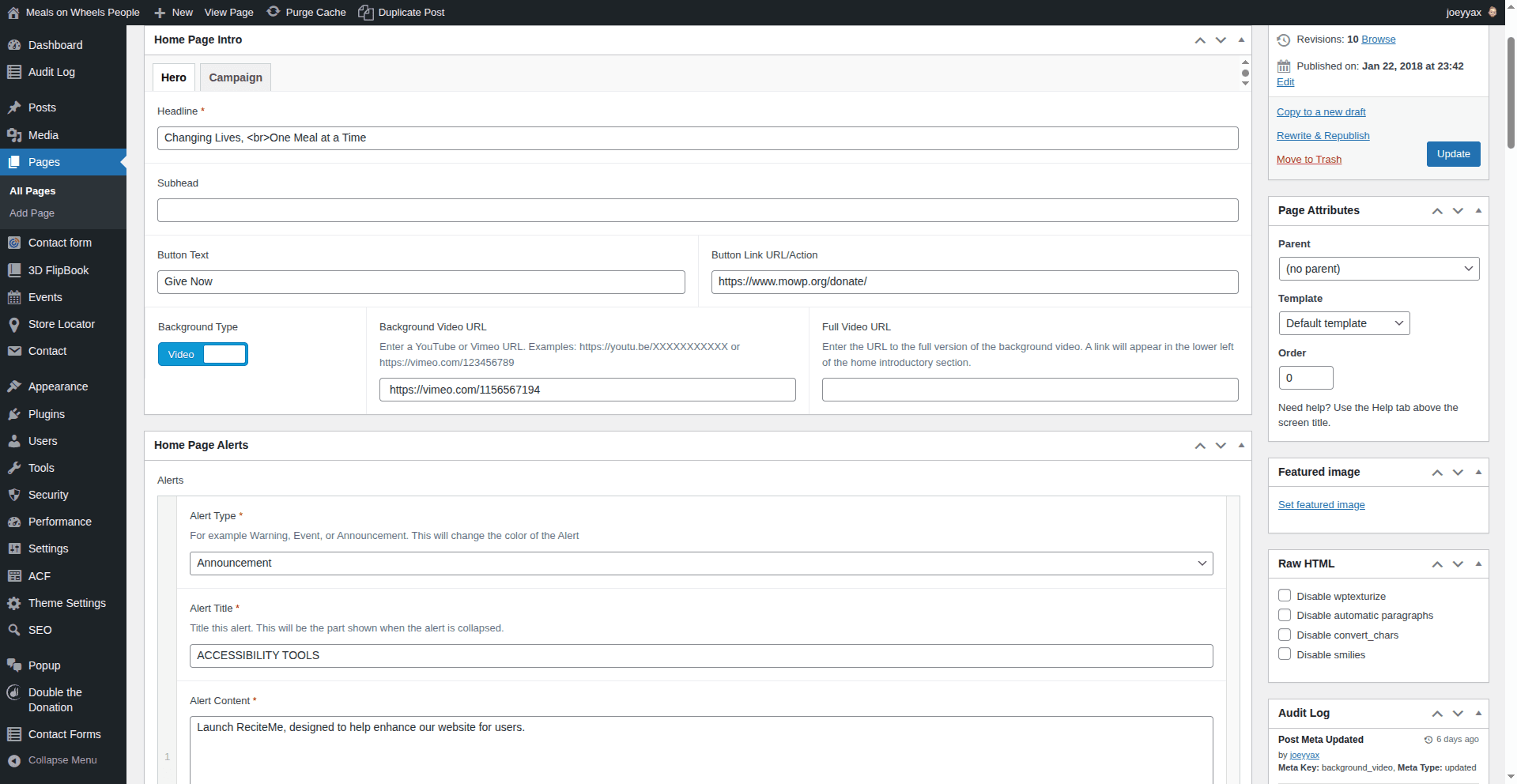
| Field | What it does |
|---|---|
| Headline | The main text displayed in the hero. Supports <br> for line breaks. For example, Changing Lives, <br>One Meal at a Time splits into two lines. |
| Subhead | Optional smaller text below the headline. Leave blank if you don't need it. |
| Button Text | The label on the CTA button (e.g. "Give Now", "Learn More"). |
| Button Link URL/Action | Where the button goes when clicked. Can be an internal page or external link. |
| Field | What it does |
|---|---|
| Background Type | Toggle between Video and Image. |
When set to Video:
| Field | What it does |
|---|---|
| Background Video URL | A YouTube or Vimeo link that plays on loop behind the hero text. Autoplays muted (standard browser behavior). |
| Full Video URL | Optional. If provided, a "Watch Video" link appears so visitors can watch the full-length version. |
When set to Image:
| Field | What it does |
|---|---|
| Background Image | Upload or select a landscape image from the media library. Use a high-resolution image, at least 1920px wide. |
Campaign tab
The campaign card is designed for temporary promotions: capital campaigns, annual drives, special events. It appears as a card overlaying the bottom of the hero.
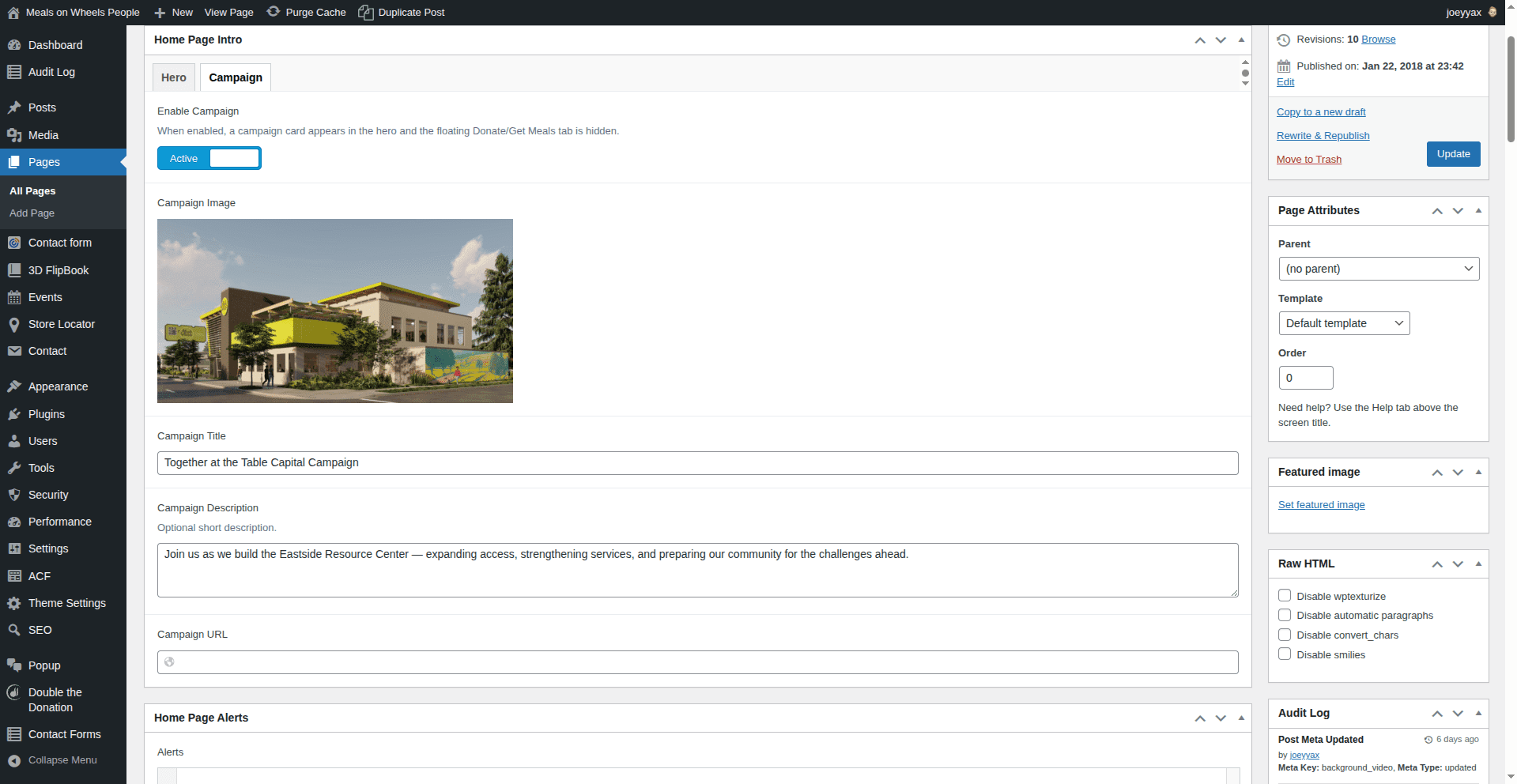
| Field | What it does |
|---|---|
| Enable Campaign | Toggle to Active to show the campaign card. Set to Inactive to hide it. |
| Campaign Image | The image on the left side of the card: a rendering, photo, or graphic related to the campaign. |
| Campaign Title | The headline on the card. |
| Campaign Description | Optional short description. Keep it to 1–2 sentences. The card has limited space. |
| Campaign URL | Where the card links to when clicked. Typically a dedicated campaign landing page. |
When the campaign is active, the floating Donate/Get Meals tab hides. This is intentional. Having both visible at the same time is too visually busy. The tab returns when the campaign is deactivated.
What it looks like
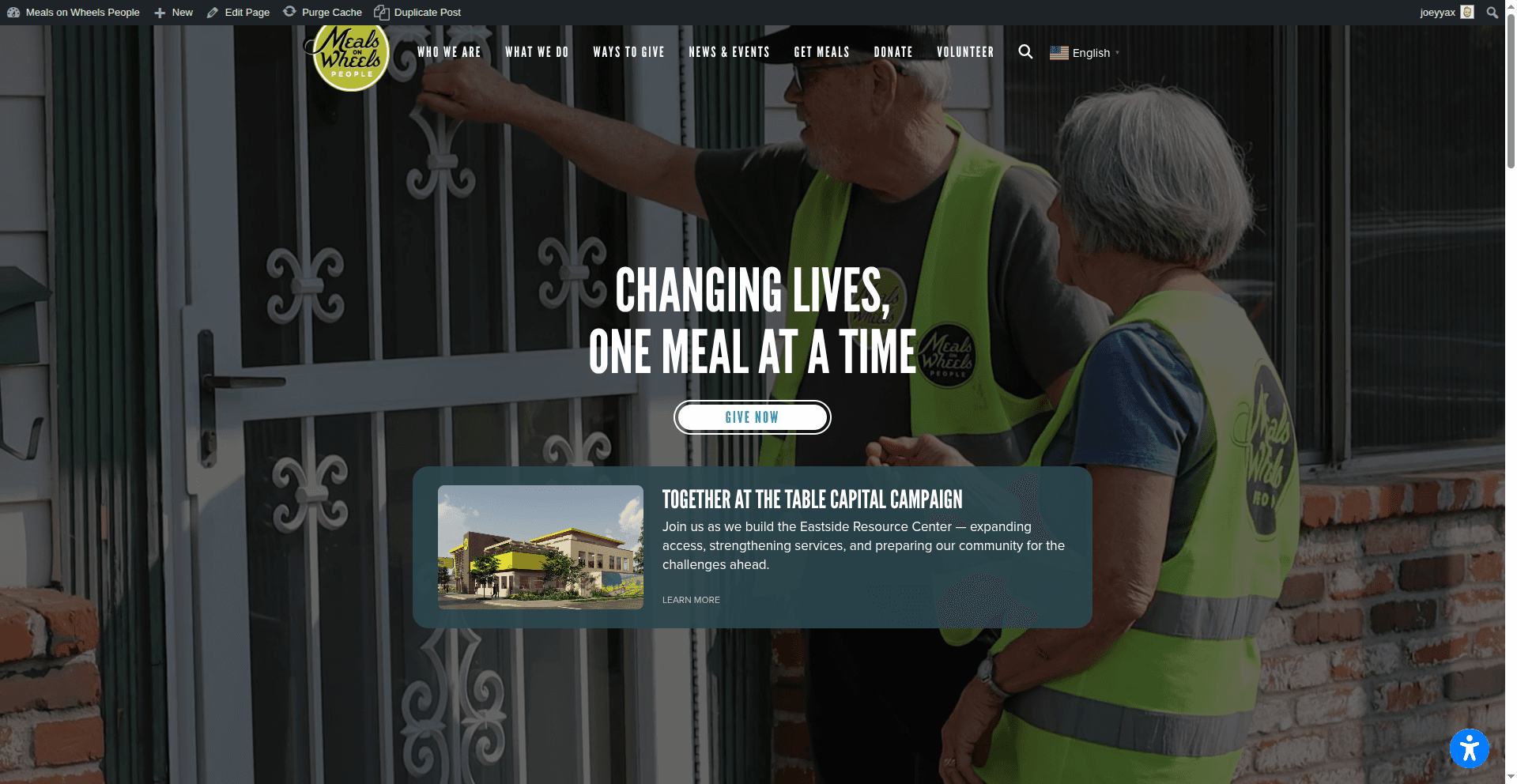
The campaign card appears anchored at the bottom of the hero, below the headline and CTA button. The entire card is clickable and links to the Campaign URL.
Swapping campaigns
The campaign card is built to be reusable across different campaigns.
Update the content
Go to the Campaign tab and replace the image, title, description and URL with the new campaign's content.
Save
Click Update to publish the changes.
To temporarily disable the campaign (e.g. between campaigns), just toggle Enable Campaign to Inactive. Your content stays saved, so you can re-enable it later without re-entering it.
Tips
- Keep the headline short. Two lines max looks best. Use
<br>to control where the line breaks. - Background video autoplays muted. Browsers don't allow autoplay with sound. The video loops continuously.
- Campaign description should be brief. Let the campaign landing page do the heavy lifting.
- Test with Preview Changes. Click "Preview Changes" before publishing to see how the hero looks, especially useful when swapping campaign content.