Carousel
Create swipeable slideshows with images, videos, and calls to action
The carousel lets you create a swipeable slideshow on any page. Each slide can have its own image or video, text, buttons and color theme. Visitors navigate between slides by swiping, clicking arrows, or letting it autoplay.
Adding a carousel to a page
Edit the page
Go to Pages in the WordPress admin and click on the page you want to add a carousel to.
Add a carousel section
Scroll down to Page Sections (below the main content editor) and click the blue + Add Section button. Choose Carousel.
Add your slides
Click Add Row inside the Slides area to create slides. You need at least 2 for navigation to appear.
You need at least 2 slides for the navigation (arrows, dots, swiping) to appear. A single slide just displays as a static section.
Slide fields, tab by tab
Each slide has four tabs. Here's what each one contains.
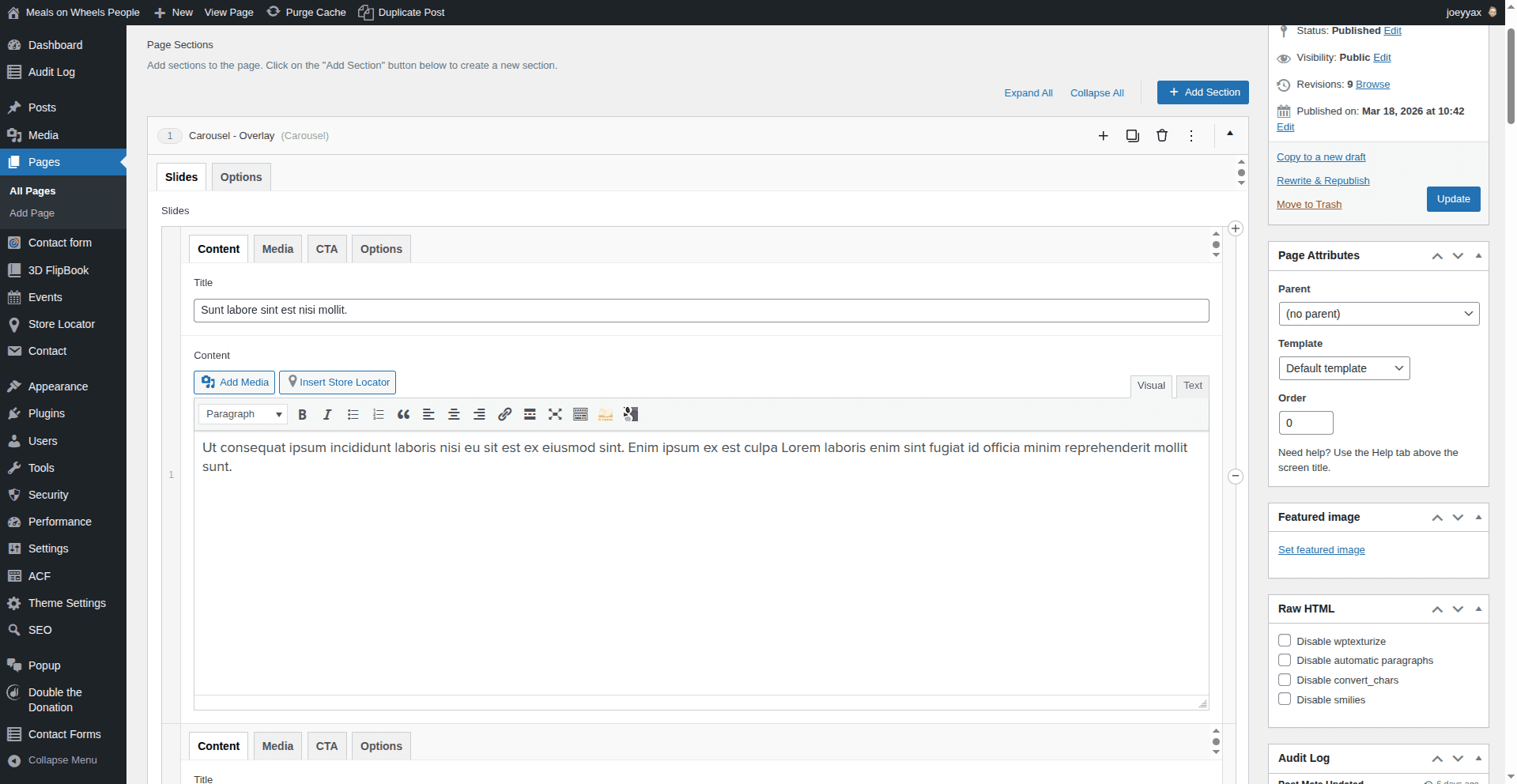
| Field | What it does |
|---|---|
| Title | The headline displayed on the slide. Keep it short. One line works best. |
| Content | Body text below the title. This is a full editor, so you can use the usual: bold, italic, links, lists. Keep it concise, especially for overlay and cards layouts where space is tight. |
| Field | What it does |
|---|---|
| Media Type | A toggle to switch between Image and Video. The fields below change based on your selection. |
| Image | Upload or select an image from the media library. Appears when Media Type is set to Image. Use landscape-oriented photos for best results, roughly 16:9 or wider. |
| Video URL | Paste a YouTube or Vimeo link. Appears when Media Type is set to Video. Just paste the regular URL (e.g. https://www.youtube.com/watch?v=abc123). The carousel handles the embedding. |
Video slides lazy-load: the YouTube/Vimeo player only initializes when the slide scrolls into view, so they don't load until needed.
| Field | What it does |
|---|---|
| Buttons | Up to 3 buttons per slide. Each button has a Label, URL and Style. |
| Style | Button color: Teal (default), Dark Blue, Red, or White. Pick one that contrasts with the slide's theme color. |
| Field | What it does |
|---|---|
| Theme | The color scheme for this individual slide. Controls the background/overlay color and text styling. Options: Dark Blue (default), Teal, Red, Green, Light, White. Each slide can have its own theme. Mix and match to create visual variety. |
Carousel options
Click the Options tab at the carousel section level (not inside a slide) to access settings that control the entire carousel.
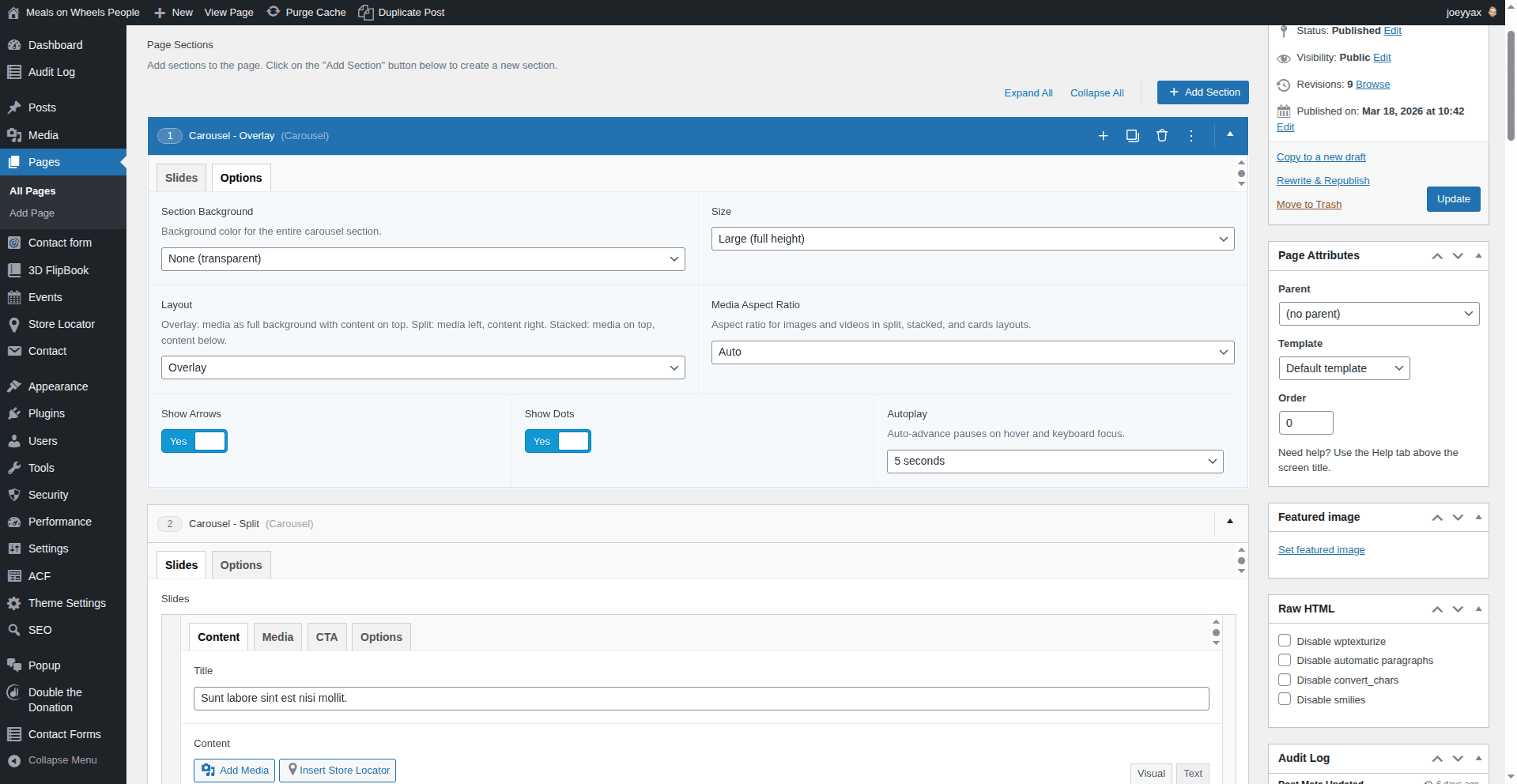
| Setting | What it does | Options | Default |
|---|---|---|---|
| Section Background | Background color behind the entire carousel section | None (transparent), Dark Blue, Teal, Light Teal, Green, Red, White | None |
| Size | Height of the carousel | Small, Medium, Large (full height) | Small |
| Layout | How content and media are arranged (see below) | Overlay, Split, Stacked, Cards | Overlay |
| Media Aspect Ratio | Consistent shape for images/videos in Split, Stacked and Cards layouts | Auto, 16:9, 4:3, 1:1, 21:9, 3:2 | Auto |
| Show Arrows | Left/right arrow buttons for navigation | Yes / No | Yes |
| Show Dots | Dot indicators below the carousel | Yes / No | No |
| Autoplay | Automatically advance slides on a timer | Manual, 3s, 5s, 7s, 10s | Manual |
Autoplay is off by default for a reason. It can be annoying if the content needs time to read. Use it for visual/photo-focused carousels, not text-heavy ones. When autoplay is on, it pauses when someone hovers or uses the keyboard.
Layout guide
There are four layout modes. Pick the one that fits your content best.

The image or video fills the entire slide as a background, with text and buttons layered on top. Big, bold, hero-style. Great for visual impact when you have a strong photo and short text.
Best for: campaign announcements, hero banners, photo-forward slides with minimal text.

Image/video on the left, text and buttons on the right. Gives both the media and the copy room to breathe.
Best for: slides where you need more text, storytelling, or when the image shouldn't be cropped or obscured by text.
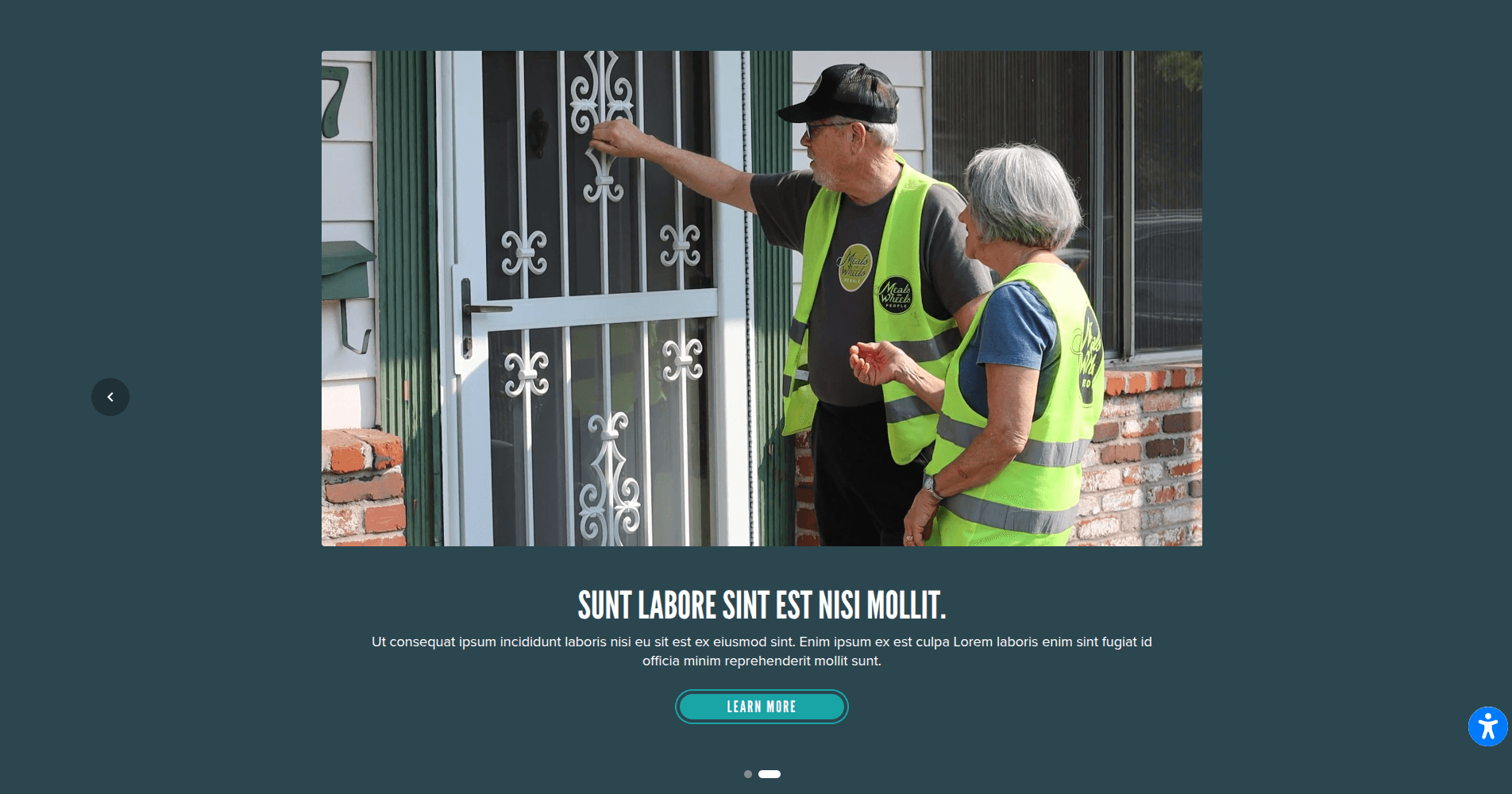
Media on top, text and buttons below. Clean and straightforward.
Best for: photo or video showcases with supporting captions, centered/balanced layouts.
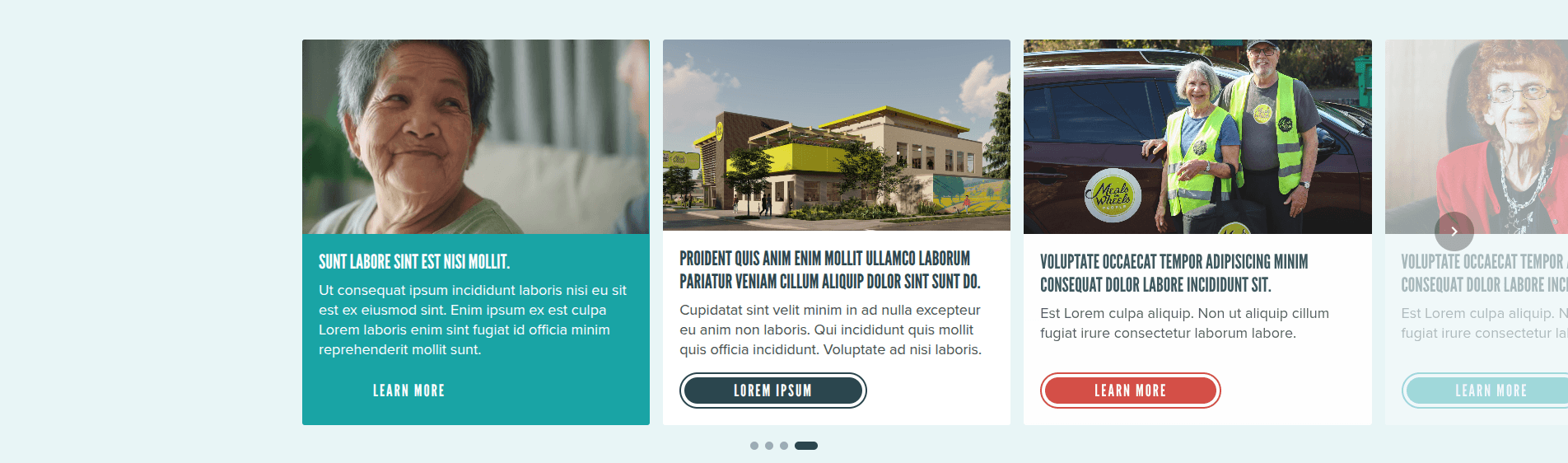
Each slide is a card with an image on top, title and text below. Multiple cards are visible at once and visitors scroll through them horizontally.
Best for: showcasing multiple items, team members, programs, or any content that benefits from a browsable grid.
How visitors navigate
Once you have 2+ slides, visitors can move between them by:
- Swiping left/right on touch devices (phones, tablets)
- Clicking arrows on the left and right edges (if Show Arrows is on)
- Clicking dots below the carousel (if Show Dots is on)
- Keyboard: left/right arrow keys when the carousel has focus
- Autoplay: slides advance on their own if you've set a timer
Tips
Keep slide count reasonable. 3–5 slides is the sweet spot. More than that and people stop clicking through.
- Use consistent image sizes. The aspect ratio setting helps, but starting with images that are roughly the same dimensions gives the best results.
- Test on mobile. The carousel is fully responsive, but it's worth a quick check to make sure your text isn't too long on smaller screens.
- Cards layout shows multiple slides. Unlike the other layouts, cards displays several slides at once and visitors scroll through them. Plan your content accordingly.
- Each slide can have its own theme color. Use this to create visual variety between slides, or keep them all the same for a consistent look.